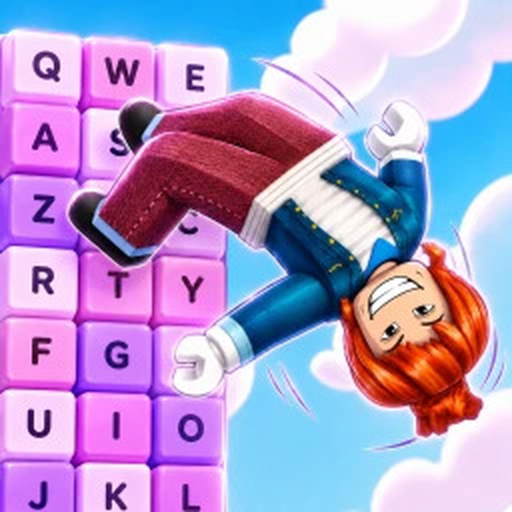
Use standard Roblox movement, then follow the game’s on-screen prompt for the backflip action
The FRONTFLIPPERS description explains the game loop but does not publish a keyboard, controller, or mobile binding chart. That means a specific flip key should not be presented as fact. Open the correct place, wait for its interface to load, and read the on-screen button or tutorial prompt tied to the backflip action.
PC, mobile, and controller control verification remains separate: standard Roblox movement setup and camera checks are useful, while exact custom mappings are pending until they appear in the selected game. On mobile, look for a touch control added by the game rather than trying a desktop key from a video. On controller, inspect Roblox’s menu and any in-game hints before assuming support for a particular button.
If an input appears unresponsive, rule out chat focus, a covered mobile control, a disconnected controller, browser keyboard capture, or a still-loading interface. Rejoin the same FRONTFLIPPERS place after changing one setting. Do not import control advice from Speed Keyboard Escape, Backflip Obby Escape, or another similarly named experience.